
Open a client's billing tab
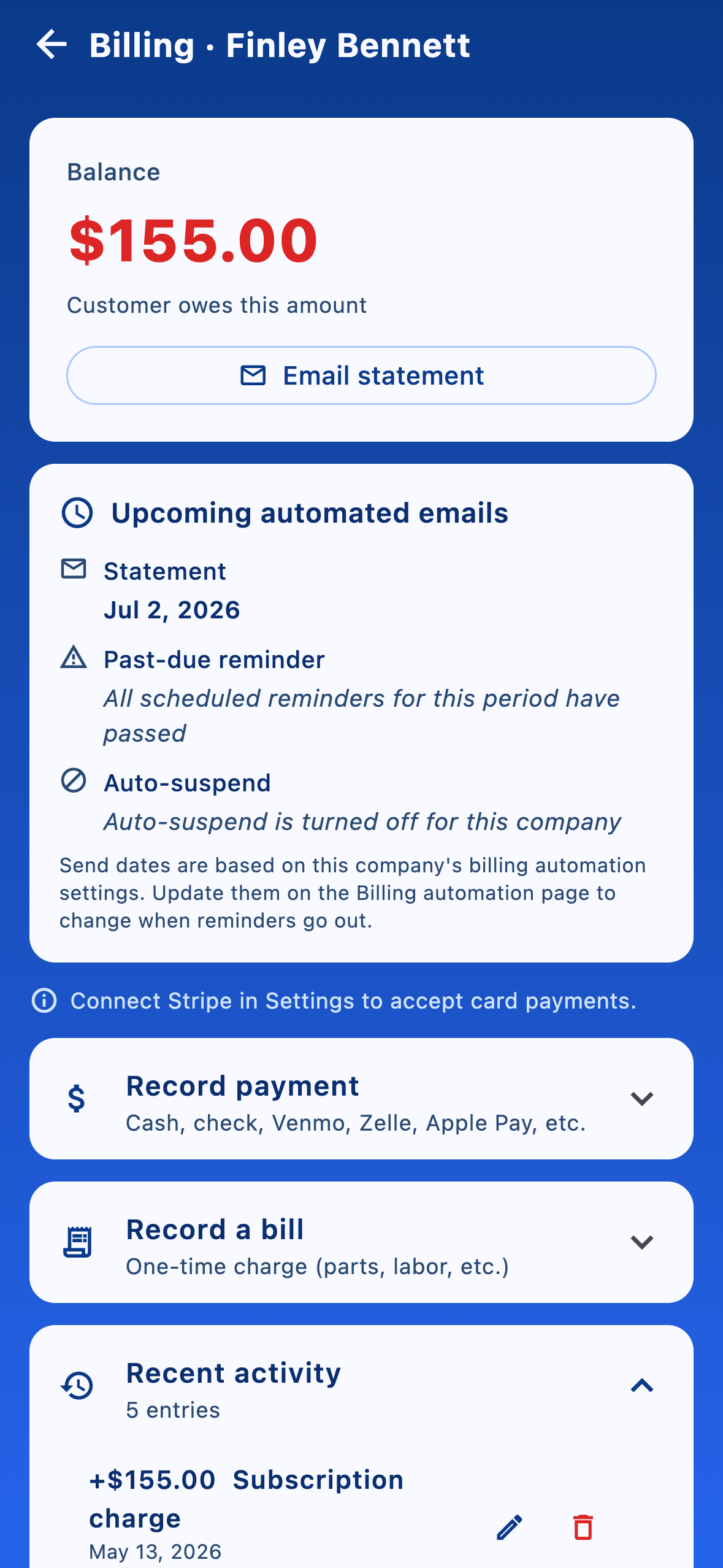
From Clients & billing, tap a client to open Client profile, then switch to the Billing tab. The top of the screen shows the current balance; the sections below it are where every billing action lives.
Card on file (Stripe)
Once Stripe is connected, you have three ways to put a card on file:
- Send card setup link — emails or texts the customer a secure link to save their own card. They never see a sign-in screen and you never see the card number.
- Add/Update card manually — if you're with the customer in person, type the card details into the secure input. The card is tokenized by Stripe immediately; we don't store it.
- Charge card — once a card is saved, charge any amount (e.g. for a one-off repair, an annual opening, or catching up on a balance).
Record a manual payment
Got a cash or paper-check payment? Tap Record payment, enter the amount and date, optionally tag it (cash, check, etc.), and Apply payment. It reduces the balance and appears in Recent activity immediately.
Add a bill or one-off charge
Tap Record a bill to add a charge to the customer's ledger — a special service, parts, or an outside-of-route visit. Enter amount, description, and date, then Add bill to ledger. Combined with Charge card it gives you a quick path: bill, then charge.
Choose a pricing model
Expand Subscription on the billing tab and pick the model that matches how you bill this client. Each client can be on a different model — your route mix isn't forced into one shape.
- Flat subscription — a recurring weekly, monthly, or yearly fee. Set the amount, the cycle anchor day, and whether mid-cycle starts should be prorated.
- Subscription + chemicals — the same recurring fee, plus a rolled-up chemical charge per visit for whatever the tech actually added, priced from your Company inventory → Sale prices.
- Per visit — no recurring fee. Each time a tech logs a visit, a flatAmount per visit you set is posted to the customer's ledger.
- Per visit + chemicals — the per-visit flat amount plus the same chemicals pass-through.
- Chemicals only — no recurring fee and no per-visit fee. The customer pays only for the chemicals you actually add during the month, priced from your Company inventory → Sale prices. Great for "you pay for what we put in" relationships. Each month's chemical lines are rolled into a single statement on the customer's Payment due day.
After you pick a model and save, the right amount posts to the ledger automatically as soon as a visit is logged (for visit- based charges) or as the cycle elapses (for subscription charges). Editing or deleting a visit re-applies or reverses the visit-derived rows so the customer is never billed twice for the same edit.
Post recurring charges that are due
For subscription clients, when new periods elapse tap Post charges for completed periods to bill the customer for everything that's overdue. (Per-visit clients don't need this — their charges post as visits are logged.)
Statement & past-due emails
myPoolFlow can send a monthly statement and a configurable set of past-due reminders to each client. Subscription clients are anchored on the current period; per-visit and chemicals-only clients get a monthly rollup of every visit and chemical line for that month, on the same Payment due day cadence. When Auto-charge card is on for a non-recurring client, myPoolFlow charges the saved card for that month's rollup right after the statement goes out.
The customer billing screen has a single Email button that picks the right template based on the client's current balance — a regular statement when the account is current, a past-due reminder when it owes money. Every send (manual or automated) is recorded in the Email history audit log just below Recent activity so you can confirm what went out, when, to whom, and who triggered it.
Billing automation (Settings → Billing automation)
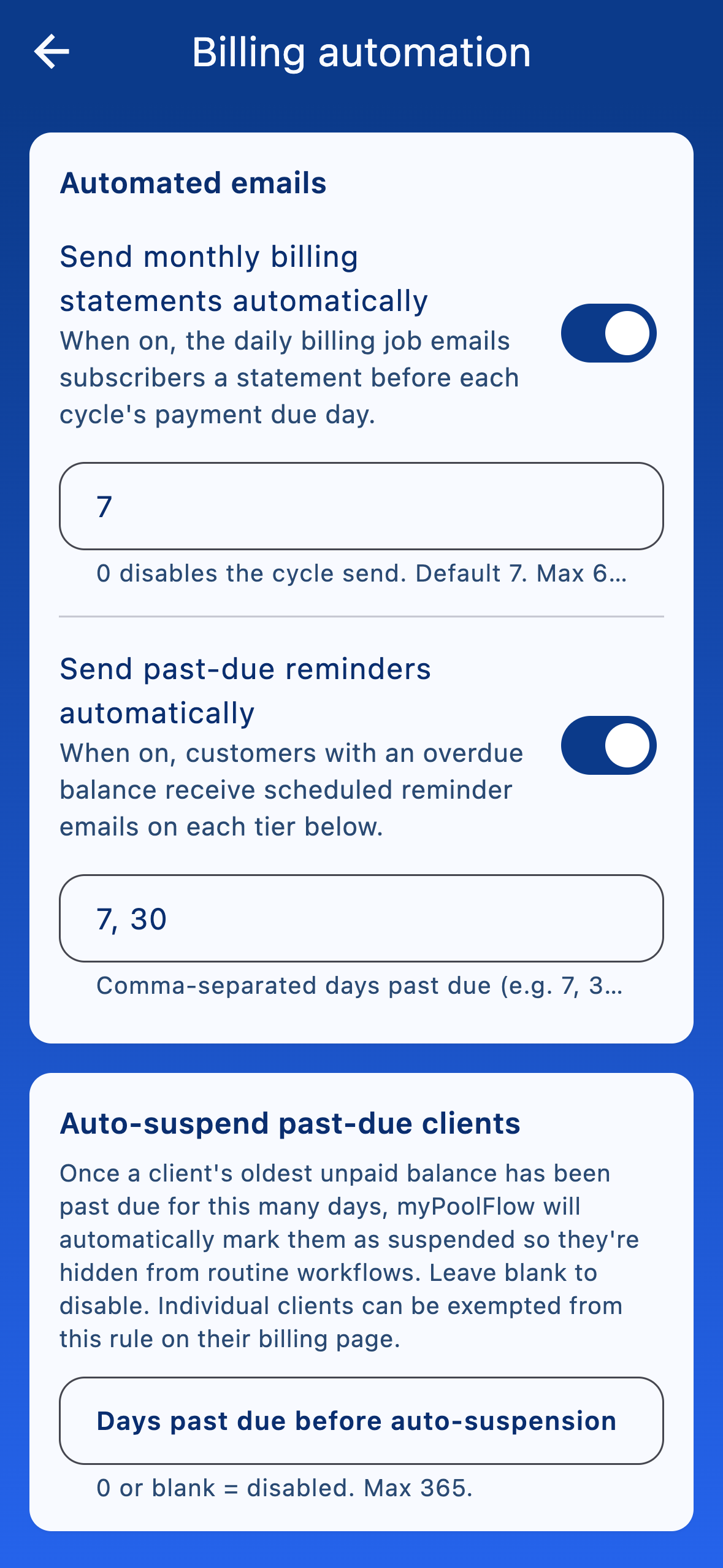
Open More → Settings → Billing automation to control the company-wide jobs that run nightly:
- Auto-send statements — when on, monthly statements go out automatically on each client's payment-due day. Default on.
- Auto-send past-due reminders — when on, the configured cadence of overdue reminders fires automatically for clients with an unpaid balance. Default on.
- Auto-suspend past-due clients after N days — blank or zero disables the feature. When set to a positive number (e.g. 45), the nightly job marks any client as Suspended once their oldest unpaid charge has been past its due date for at least that many days. The client gets an email letting them know their account is suspended and how to pay.
Auto-suspended clients are reinstated automatically the moment their balance clears. Clients you suspend manually (from the client detail page) are never auto-reinstated — those stay suspended until you flip the switch back.
Fix a starting balance
Migrating from another tool? Tap Set starting balance and enter the amount the customer already owes (or has on credit). Set ledger balance writes a single adjustment so the running balance starts where it should without recreating old invoices.
Fix a mistake in recent activity
Scroll down to Recent activity. Payments and one-off bills support both edit and remove — handy if you posted a payment to the wrong customer or typed the wrong amount.
Chemical charges and per-visit charges only support remove, because they're derived from the logged visit and the visit is the source of truth. Removing one comps the customer for that line without touching the visit itself — the row will reappear the next time the visit is saved if the customer is still on a billing model that produces it, so pair the remove with a visit edit or a pricing-model change if you want it gone for good.