Open today's route
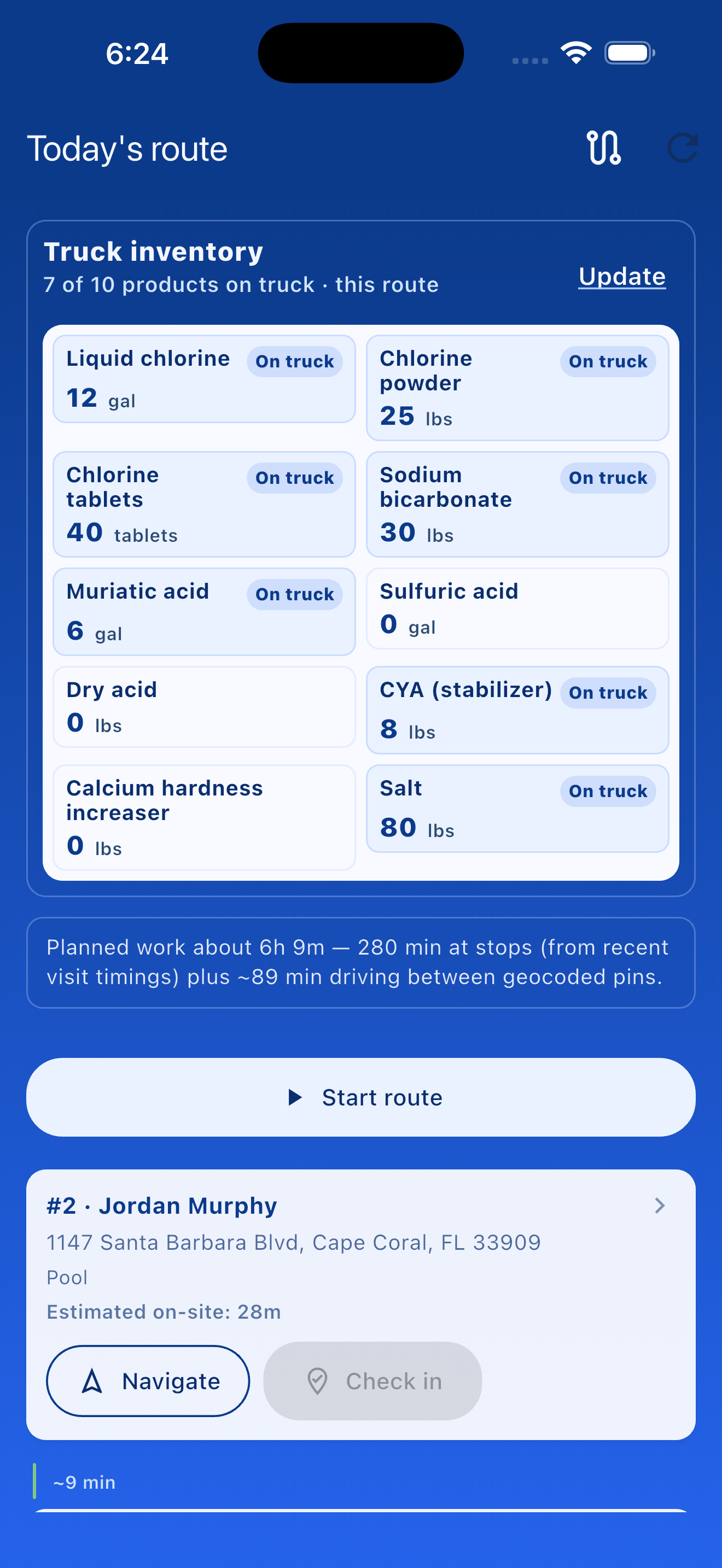
Tap the Today's route button on the Schedule tab (the floating action button) to open the in-field workflow. The screen shows your stops for the day in the optimized order your admin set up, plus a snapshot of what's on your truck and any work orders attached to the day.
Start route and navigate
Tap Start route at the top to clock in for the day. The timer that follows is the basis for mileage and time reports your admin sees later.
For each stop:
- Tap Navigate on the stop card. myPoolFlow hands off to your phone's default maps app with the stop address pre-filled.
- When you arrive, tap into the stop. If the company set a gate code, it shows here.
- Tap Log visit when you finish work — see Logging a visit for the form details.
See the whole team on a map
Tap the Driving map icon in the app bar to open the Team route map. Each technician's path is colored differently so you can see where everyone is for the day.
Adjust morning and evening addresses
If you didn't start at your usual home address (e.g. you're leaving from the shop today, or going home to a different address tonight), edit the morning and evening addresses at the top and bottom of the route. The optimizer uses these to calculate accurate mileage.
Clock out — and undo if you tapped it early
Tap Clock out at the bottom when your day is done. myPoolFlow seals the route summary and posts the timer entry.
Review your day summary
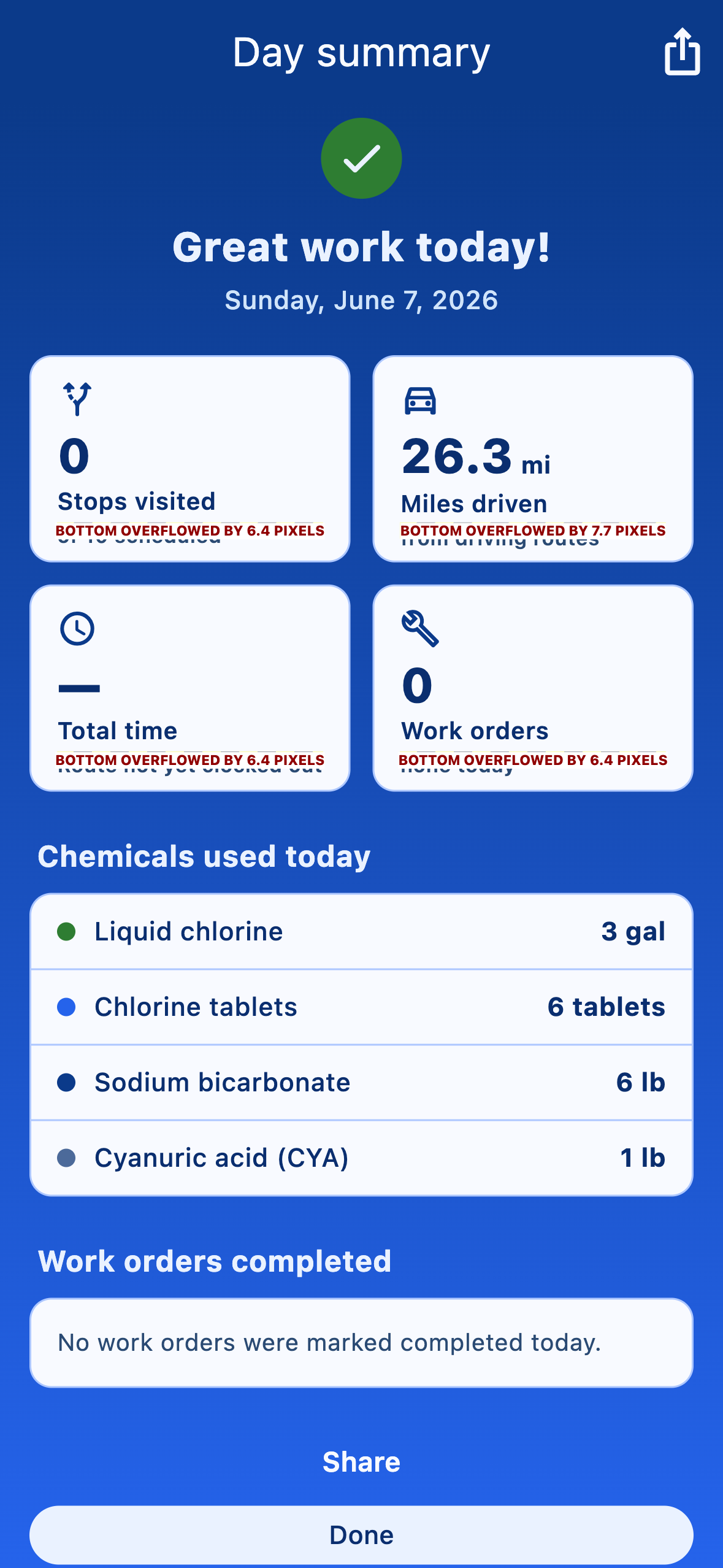
After you clock out, the Day summary screen recaps the day: Stops visited, Miles driven, Total time, and Work orders completed, plus a Chemicals used today breakdown. Tap Share to send the recap (handy for texting your admin a quick end-of-day wrap-up) or Done to close it. The same numbers feed the mileage and profitability reports your admin sees.
Finish a previous day
If you got pulled away yesterday and never clocked out, the Today's route screen lets you finish the prior day's log first. You won't lose visits you logged — they stay attached to that older route.