Create your account
Every technician needs their own myPoolFlow account. Sharing a login with the office makes it impossible to credit your visits properly or use team chat.
- Install myPoolFlow from the App Store or Google Play. If you also want to use a browser, the same login works at app.mypoolflow.com.
- Tap Create account on the welcome screen and use an email you can actually check — we send password resets there.
- Verify the email link you receive before signing in for the first time.
Join your company
There are two ways your account ends up inside the company you work for:
- Your admin invited you. You'll get an email with a link. Tap it, sign in, and you're in.
- You request to join. Open More → Settings → Profile, tap Join company, and enter the admin's email or phone number. We'll show the company name before you send the request, so you know you're joining the right one. The admin gets an email and approves or declines.
Switch to working at the company
Once approved, the profile sheet shows Work at <company>. Tap it and the app reloads with your employer's pools, routes, and inventory. To flip back to a personal workspace later, tap Switch to my company.
Learn your tabs
Most days you'll live in three tabs at the bottom of the screen:
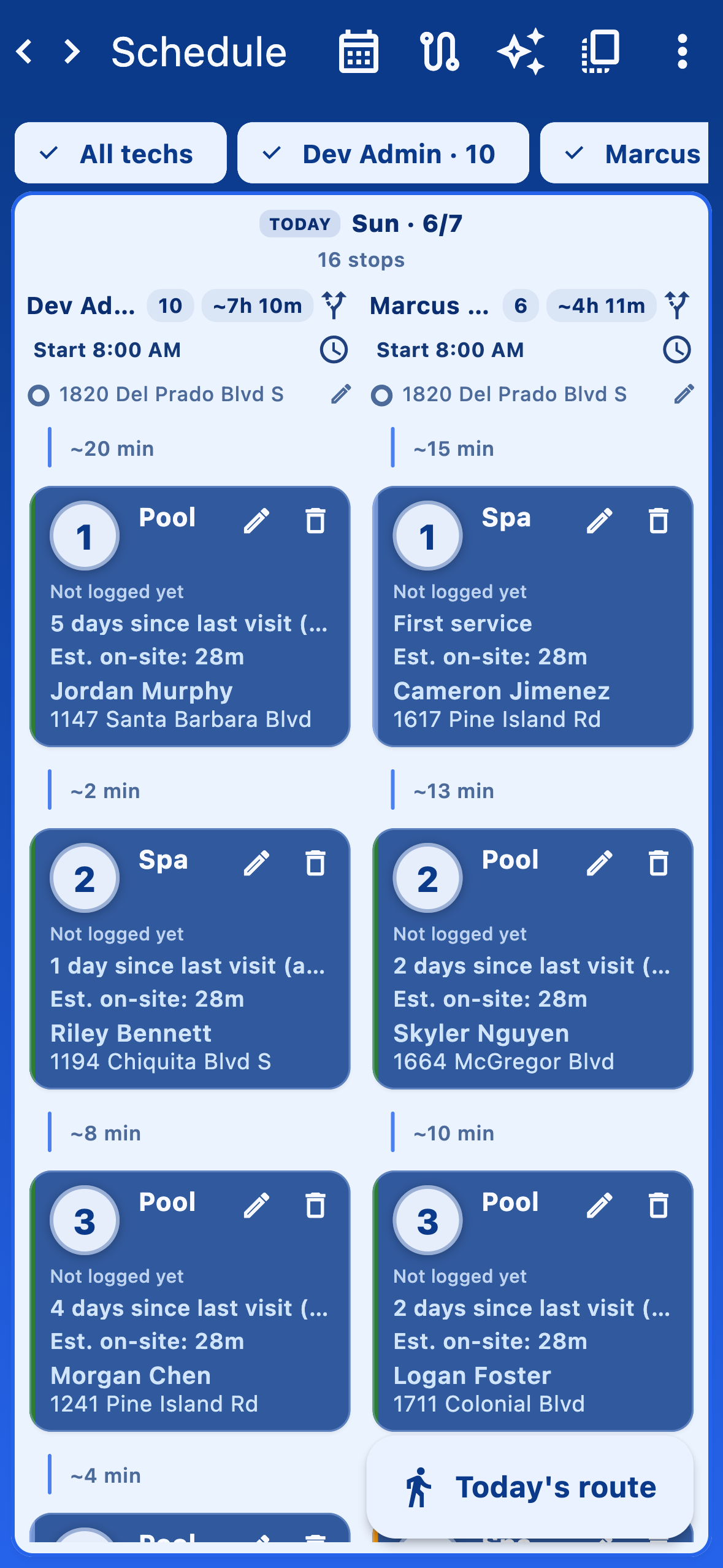
- Schedule — your planner. Opens to today by default; you can jump to other days or open the Full week.
- Stops — the list of pools due for service across everyone. The big Log visit button is on every row, and the app bar has a map icon for the service map.
- Team chat — appears once your company has at least two members. The Everyone room is your catch-all; create group chats for crews.
- More — overflow plus Support and Settings.