
Find the Team page
Open More → Settings → Team. (Team used to be a top-level tab in older versions of myPoolFlow; it's now under Settings because invites, role changes, and join requests are infrequent admin tasks.)
The page shows two sections: Technicians asking to join at the top (pending join requests) and Team members below, grouped into Administrators, Office staff, and Technicians. Admins and office staff can take action here; technicians see a read-only view.
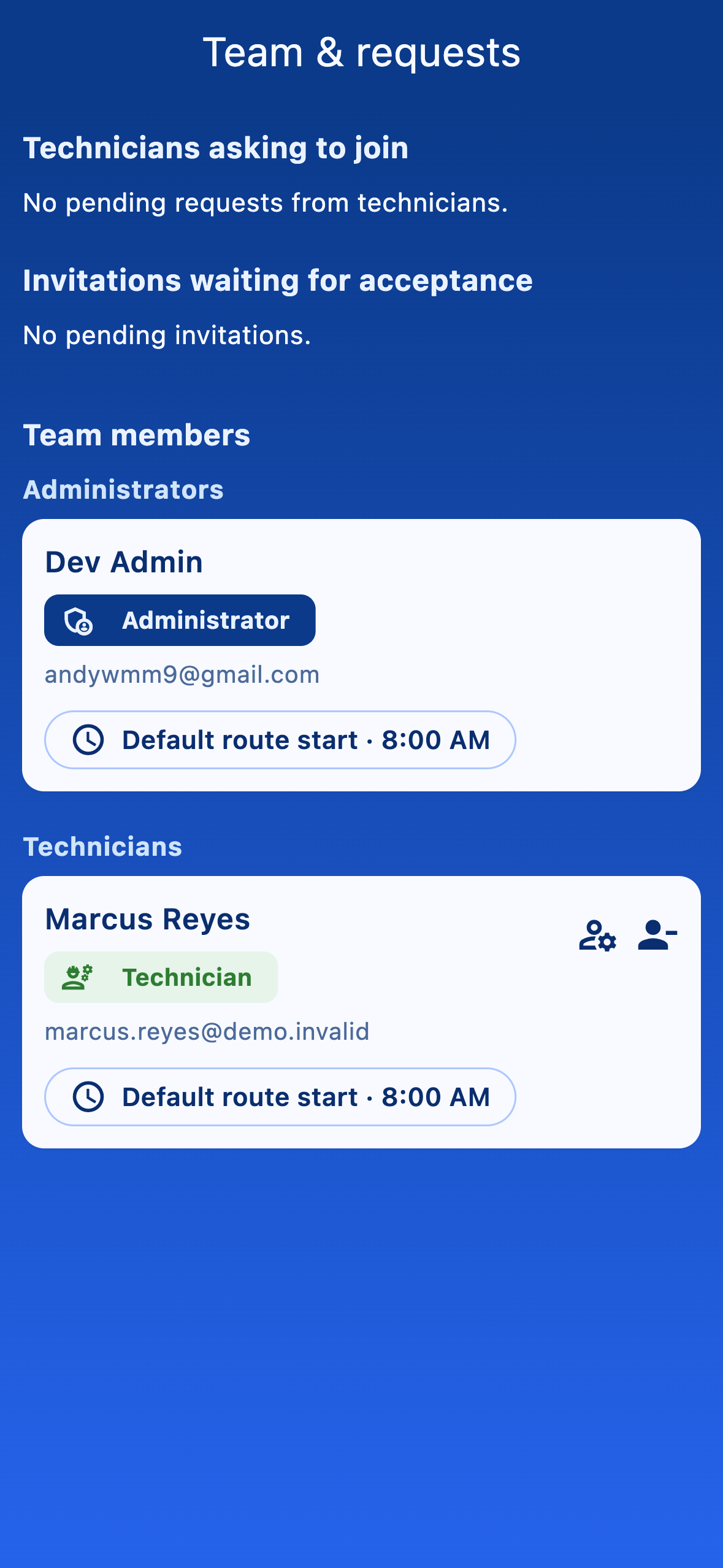
Three kinds of teammate
myPoolFlow has three membership roles. Pick the smallest one that lets the person do their job.
- Administrator — full owner powers. Same back-office access as office staff, plus the admin-only actions: inviting someone as Administrator, promoting a teammate to Administrator, and demoting or removing an existing Administrator. Administrators can also be assigned to routes like a technician when you run your own pool. Use sparingly.
- Office staff — same back-office access as an administrator for customers, billing, planner, work orders, reports, inventory, team invites/removals, Stripe Connect, and company settings. Office carve-outs: never assigned routes or work orders, never appear on the per-technician inventory matrix (no van bucket), and cannot touch the administrator role — no inviting as Admin, no promoting anyone to Admin, no demoting or removing an existing Admin. Office is a free seat — billing is pool-based, not per user.
- Technician — field crew. Assigned to routes, logs visits, updates their own truck quantities according to your company's inventory policy. Sees the simpler technician shell focused on today's route.
Invite a teammate
Tap Invite(the floating + button). Enter the person's name and the email address they'll use to sign up, choose Technician, Office, or Administrator, then send the invite. They receive an email with a link to create their myPoolFlow account already pointed at your workspace and at the role you picked.
Approve someone who requested to join
When a technician requests to join (using your admin email or phone number from their Profile sheet), the request appears under Technicians asking to join. You get three options per request:
- Decline — reject the request. The technician sees it was declined.
- Approve as technician — most common choice. They join with the standard tech role.
- Approve as administrator — adds them as a full admin, with the same powers as you. Use sparingly.
Change a teammate's role or route start time
Tap a team member row to open their actions. Admins can change anyone's role (Technician ↔ Office ↔ Administrator) and remove anyone. Office staff can change roles between Technician and Office and remove Technician or Office members, but theMake administrator option and any action targeting an existing administrator are hidden — only an administrator can touch the administrator role. Route start time applies only to technicians and administrators (office staff are never route assignees). Removing a member revokes their access immediately but keeps the visits they logged.