
The Clients & billing tab
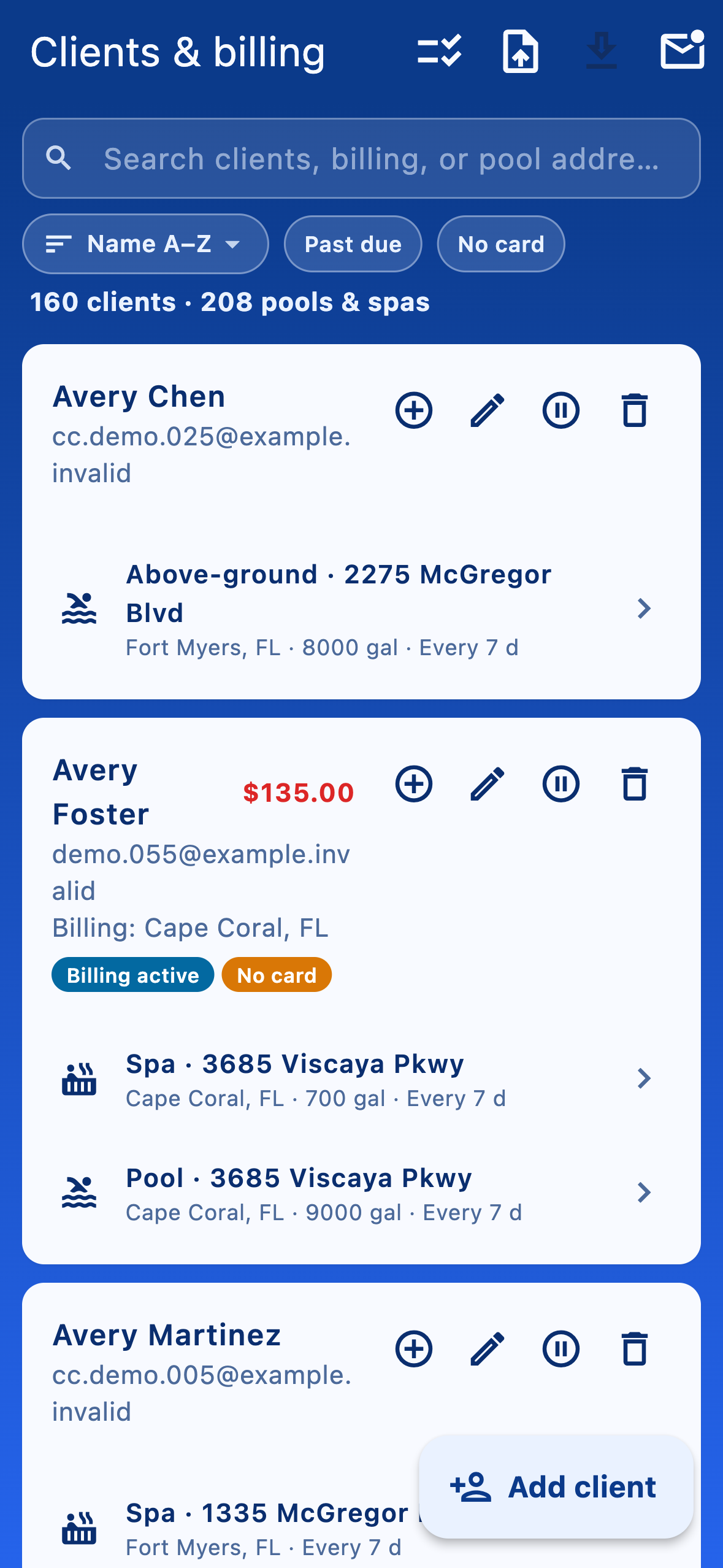
Clients & billing is your customer directory. Each row is one client; their pools and spas nest underneath. Status pills tell you at a glance who has billing active, auto-charge enabled, no card on file, or no email address.
Search, sort, and filter from the toolbar across the top. Use the filter chips for common cases like past due or no card on file.
Add one client at a time
Tap the Add client button (the floating + on mobile, top of the list on web). The new-client form lets you add a customer and any number of their pools in one save.
- Enter customer name, contact info, and billing address.
- Tap Add pool or spa for each body of water. Choose the pool type, water type, size, service interval, and the service address (it can differ from the billing address).
- Tap Save. The customer and all their pools are created in a single transaction — if any pool is invalid, nothing is saved.
Edit a customer or their pools later
Tap a customer row to open Client profile, then switch to the Info & Pools tab. From there you can update customer fields, add new pools, or delete pools that are no longer in service. Tap Save in the floating action area when you're done.
Import customers and pools from a CSV
For bulk migration from a spreadsheet or another tool, use the Import CSV toolbar action on the Clients & billing tab.
- Tap Download template first. The template has the exact column layout the importer expects.
- Fill the template in your spreadsheet of choice, then tap the file area and choose your .csv.
- Tap Preview. The importer validates every row and shows which ones are ready and which have issues; nothing is saved yet.
- Tap Import (N clients, M pools), confirm the Import now? dialog, and the importer creates the ready rows. Rows with issues are skipped — fix them in the CSV and import again to add the rest.
Export your directory
Use Export CSV in the same toolbar to download your full client and pool directory. This is useful for offline backups, accountant hand-offs, or moving data elsewhere — your records are your data, not ours.
Bulk actions: suspend, reactivate, delete
Tap Select in the toolbar to enter bulk mode. Tick the clients you want to act on (or Select all) and the bottom bar gives you:
- Suspend — keep the client's record but stop showing them on routes and reports.
- Reactivate — undo a suspension.
- Delete — permanently remove the client and their pools. This can't be undone.